
Your WordPress dashboard shows the same update notifications from three weeks ago. Plugins stuck on old versions, themes begging for updates, and WordPress core sitting there unchanged despite having auto-updates enabled.
Auto-updates break more often than most site owners realise. The problem? They fail silently with no error messages, no alerts, just security patches that never arrive.
First, Are Auto-Updates Even Enabled?
Before diving into complex troubleshooting, check the obvious culprit.
WordPress Core Updates: Go to Dashboard → Updates. Look for the auto-update status near the top. If it says “This site is automatically kept up to date,” you’re good. If not, click “Enable automatic updates for all new versions.”
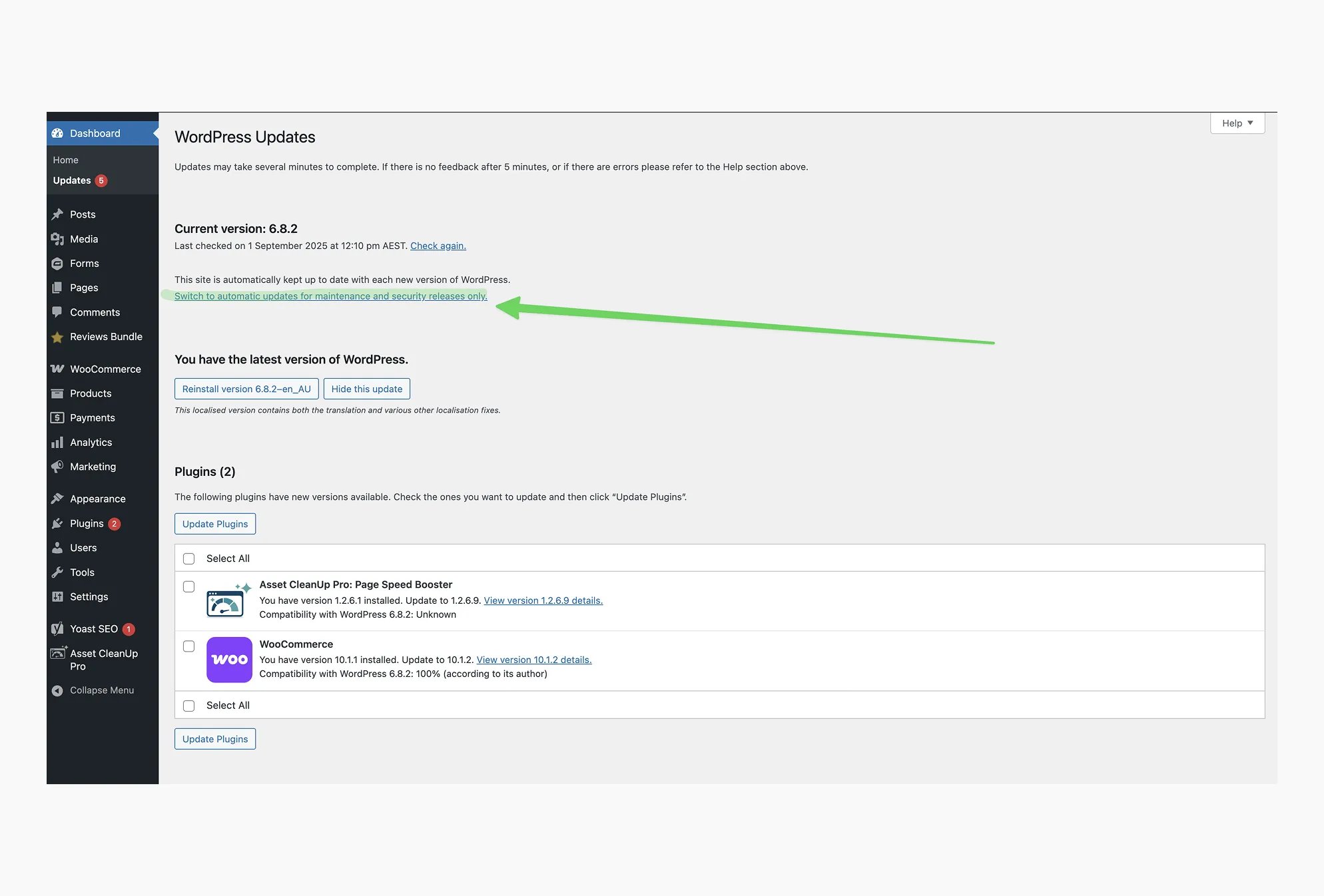
Visual cue: Look for a blue informational box at the top of the Updates page showing your auto-update status.
Plugin Updates: Navigate to Plugins → Installed Plugins. Each plugin shows an “Enable auto-updates” or “Disable auto-updates” link. Missing links mean something’s blocking the feature entirely.
Visual cue: The auto-update links appear as small text links directly below each plugin’s name and description.
Theme Updates: Head to Appearance → Themes. Check each installed theme for auto-update options. Same deal, no options visible means there’s a deeper problem.
Visual cue: Auto-update options appear when you hover over each theme in the grid view.
Diagnosing What’s Breaking Your Auto-Updates
Most auto-update failures trace back to specific technical roadblocks. Start with WordPress’s built-in diagnostic tools before calling your host.
Check Site Health First
Go to Tools → Site Health and click the “Status” tab for critical issues. This built-in diagnostic shows you exactly what WordPress needs to function properly.
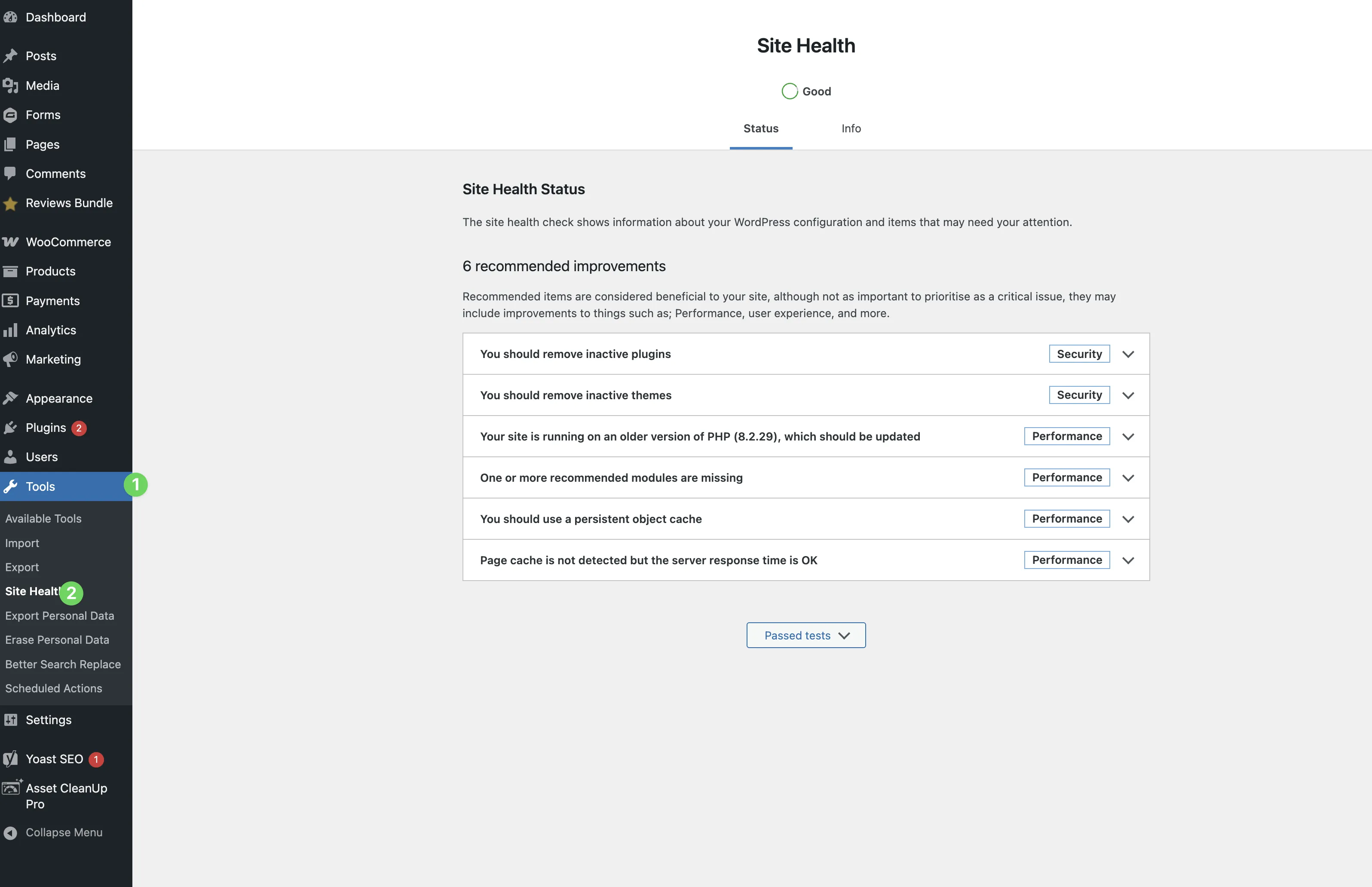
Visual cue: The Site Health screen uses a traffic light system, green checkmarks for good, orange warnings for recommendations, and red X marks for critical issues.
Key metrics to review in the “Info” tab:
- PHP version (should be 7.4 or higher)
- Memory limit (needs at least 256MB)
- File permissions status
- Server response time
Review Update History
Dashboard → Updates shows recent update attempts. Failed updates often leave clues about what went wrong. Look for partial updates that started but didn’t finish.
Visual cue: Successful updates show green checkmarks with timestamps, while failed attempts often display error messages or incomplete status indicators.
Test Manual Updates
Try updating one plugin manually. If manual updates fail, it’s likely a server issue. If manual updates work, auto-update settings are the problem.
Common Causes and Their Solutions
Server Resource Problems
Memory Limits Too Low Add this to your wp-config.php file (above the “stop editing” line):
define('WP_MEMORY_LIMIT', '512M');Alternative solutions:
- Contact your host to increase the limit server-wide
- Upgrade to a hosting plan with more memory
- Ask about PHP memory_limit settings in addition to WordPress limits
Outdated PHP Version Most hosts offer PHP upgrades through their control panel. Request PHP 8.1 or the latest stable version. Test on a staging site first if your host offers staging environments. Avoid hosts that won’t upgrade from PHP 7.2 or older.
For detailed PHP upgrade instructions, check the WordPress PHP compatibility guide.
File Permissions Issues WordPress needs specific permissions to modify its own files:
- Directories: 755
- Files: 644
- wp-config.php: 644 (never 777)
Contact your hosting provider’s support team. Most can fix permissions in under 10 minutes. Request they set “standard WordPress file permissions.”
Red flags for permission issues:
- Error messages mentioning “unable to create directory”
- Updates that start but never finish
- Plugin installations that fail partway through
The WordPress Codex file permissions guide has comprehensive instructions for different server configurations.
Plugin Conflicts
Conflicting plugins are often the sneakiest cause of update failures.
The Plugin Deactivation Test:
- Deactivate all plugins at once
- Try running updates
- If updates work, you’ve found the problem category
- Reactivate plugins one by one, testing after each
Common troublemakers:
- Jetpack: Especially versions older than 9.0
- Wordfence: Aggressive firewall settings can block update requests
- UpdraftPlus: May lock files during scheduled backups
- W3 Total Cache: File optimisation can interfere with updates
- iThemes Security: Strict file monitoring prevents core modifications
Plugin-specific fixes:
- Update the conflicting plugin first (often solves the issue)
- Check plugin settings for update-related options
- Contact plugin support with specific error details
- Consider alternative plugins if conflicts persist
The WordPress Plugin Developer Handbook provides troubleshooting guidance for plugin-related issues.
Hosting Provider Restrictions
Some hosting providers actively work against WordPress auto-updates.
Budget host limitations:
- Shared hosting often throttles background processes
- Some hosts block WordPress update servers entirely
- “Security” policies may prevent file modifications
- Resource limits might be too low for update operations
Questions to ask your host:
- “Do you block or limit WordPress auto-updates?”
- “Are there any firewall rules preventing update requests?”
- “Can you whitelist WordPress.org update servers?”
- “What are the actual memory and execution time limits?”
When to switch hosts:
- They won’t upgrade PHP beyond version 7.2
- They refuse to allow auto-updates for “security reasons”
- Support claims WordPress auto-updates “aren’t necessary”
- They can’t explain why updates fail or won’t help troubleshoot
WordPress-friendly hosting options in Australia:
- Ventra IP: Melbourne-based hosting with excellent WordPress support and local data centres
- WP Engine: Managed WordPress with built-in update handling and Australian servers
- Kinsta: Google Cloud infrastructure optimised for WordPress with Sydney data centres
- SiteGround: WordPress-optimised shared hosting with Australian support hours
Ventra IP particularly stands out for Australian businesses, offering WordPress-optimised hosting with local support teams who understand the unique challenges of hosting WordPress sites in Australia.
When Manual Updates Are Necessary
When auto-updates won’t cooperate, manual updates can fill the gap temporarily.
Dashboard Manual Updates
Click “Update Now” buttons as they appear. Updates still use WordPress’s built-in mechanisms and often work even when auto-updates are broken. However, this requires regular monitoring to catch new updates.
Visual cue: Manual update buttons appear as prominent blue buttons next to each available update.
FTP Manual Updates
Download updates from WordPress.org or plugin directories and upload via FTP to replace existing files. This bypasses most server restrictions but is time-consuming and requires technical comfort.
Manual update limitations:
- Easy to forget or delay critical security updates
- No protection during off-hours or vacations
- Doesn’t scale well for sites with many plugins
- Security vulnerabilities can remain open for days or weeks
The WordPress manual update guide covers step-by-step instructions for different update methods.
Why Working Auto-Updates Are Critical
Failed auto-updates aren’t just inconvenient. They’re a security risk that gets worse over time.
Security Patch Timing
WordPress releases security updates within days of discovering vulnerabilities. Automated scanning tools find unpatched sites within hours. Popular plugins like WooCommerce are frequent targets, and delayed updates create growing windows of vulnerability.
Real-World Impact
The 2021 File Manager plugin vulnerability affected 700,000+ sites. Sites with working auto-updates were protected immediately, while manually updated sites remained vulnerable for weeks or months. Compromised sites were used for spam, malware distribution, and botnet participation.
Business Consequences for Australian Sites
- Google blacklisting can destroy search rankings
- Customer data breaches trigger legal liability under Australian Privacy Act
- Site downtime during cleanup affects revenue
- Reputation damage persists long after technical fixes
For Australian businesses, the Office of the Australian Information Commissioner requires notification of data breaches within 72 hours, making preventative security measures like auto-updates more important than ever.
Getting Help When You Need It
If these fixes don’t resolve your auto-update issues, don’t struggle alone.
Professional support options:
- Your hosting provider’s technical support team
- WordPress developers familiar with Australian hosting environments
- WordPress.org support forums with active community help
- Local WordPress meetup groups in major Australian cities
When to call in expert help:
- Error messages you don’t understand appear repeatedly
- Multiple fixes attempted without success
- Your site handles sensitive customer data
- Downtime would significantly impact your business
The investment in professional WordPress support often costs less than recovering from a security breach or extended site downtime.
Auto-updates provide protection that manual monitoring can’t match. Fix what’s broken, get help when needed, and don’t let update issues linger. They rarely resolve themselves, and the security risks grow daily.
