
Are you a WooCommerce store owner dealing with an endless stream of failed orders? You’re not alone. What looks like a payment processing issue is often a sophisticated bot attack or “carding attack” where bad actors use stolen credit card data to test fraud schemes on your site. These automated attacks have become one of the most persistent threats facing online retailers, overwhelming order dashboards and costing businesses real money.
The scale of this problem has exploded. What started as occasional nuisance attacks has evolved into coordinated campaigns targeting WooCommerce sites specifically. One Melbourne electronics retailer tracked their spam orders and discovered that legitimate payment failures represented less than 3% of their failed transactions; the rest came from automated attacks originating from 34 different countries.
Key Takeaways
- WooCommerce stores face severe spam order issues from sophisticated bot attacks, often seen as payment processing failures.
- Implementing server-level security like Cloudflare effectively reduces spam orders without hindering legitimate customer experience.
- To combat spam, create geographic filtering rules in Cloudflare and use JavaScript challenges to identify bots.
- After cleanup, use SQL scripts to efficiently remove failed orders from your database to improve performance.
- Regular monitoring and updating security measures are essential for ongoing protection against automated attacks.
The Real Problem with Spam Orders
WooCommerce makes it easy for bots to attack your store. Unlike Shopify, WooCommerce uses standard web addresses that bots can easily find and target. The checkout process follows the same pattern on most sites.
These aren’t simple attacks either. The bots we’ve studied act like real customers. They spend several minutes looking at products before checking out. They use different IP addresses and browsers to avoid detection.
But here’s the worst part – even failed orders cost you money. Each attempt uses your server power and can trigger payment fees. Plus, you waste hours every week cleaning up fake orders from your system.
The most extreme case we encountered was a Melbourne outdoor shades company. They experienced over 1,000 spam orders created overnight. Within a month, bots had generated more than 8,000 fake orders. Their order system became completely overwhelmed – they couldn’t identify legitimate customers among all the spam.
Cloudflare’s automated defense systems blocked 21.3 million DDoS attacks in 2024, representing a 53% increase compared to 2023.
More concerning for WooCommerce store owners is the targeting pattern: Shopping and Retail sites in the United States protected by Cloudflare experienced a significant rise in DDoS activity on Cyber Monday, with 7% of all traffic in this category mitigated as DDoS attacks, with an additional 8% flagged as potential threats.
The sophistication level has reached unprecedented heights. 98% of HTTP requests towards the /wp-admin/ path were part of DDoS attacks in late 2024, showing how attackers specifically target WordPress-based stores like those running WooCommerce.
Why Traditional Solutions Fall Short
Most guides recommend installing security plugins like Wordfence or adding CAPTCHA verification to checkout pages. While these tools provide protection, they can slow down your website and create friction for legitimate customers.
Server-level protection offers a different approach. Instead of adding barriers to your checkout process, it filters malicious traffic before it reaches your WooCommerce installation. This maintains site performance while providing comprehensive protection.
The key insight is geographic patterns in spam attacks. Many spam orders originate from countries where targeted stores don’t ship products. An Australian retailer selling domestically has little legitimate traffic from certain international locations.
Server-Level Security Solutions
Several platforms offer server-level protection that can help combat WooCommerce spam orders:
DNS-Based Security Services
Cloudflare – The most popular option, Cloudflare processes millions of requests daily and offers sophisticated security rules for filtering traffic before it reaches your server.
AWS CloudFront – Amazon’s content delivery network includes AWS WAF for creating custom security rules and geographic restrictions.
Sucuri – Offers website firewall services with geographic blocking capabilities and bot detection features.
Web Application Firewalls (WAF)
These solutions can implement geographic filtering and bot detection at the server level, regardless of your DNS provider:
- ModSecurity – Open-source web application firewall
- Imperva – Enterprise-grade security platform
- Akamai – Global content delivery network with security features
For this guide, we’ll focus on Cloudflare due to its accessibility for small to medium businesses and comprehensive free tier.
The Cloudflare Implementation to Fix the Problem
Cloudflare’s approach uses JavaScript challenges to distinguish between real browsers and automated bots. When implemented correctly, this creates an effective barrier against spam while remaining invisible to legitimate customers.
Here’s what happens when the rule activates:
Legitimate visitors: Experience a brief loading screen (1-2 seconds) that completes automatically
Automated bots: Typically fail the JavaScript verification and abandon the attempt
Your admin panel: Shows dramatically reduced spam order volume
The Melbourne shades company implemented this solution and saw immediate results. Their spam order problem disappeared entirely once the Cloudflare rule became active.
Setting Up Cloudflare Security Rules
Follow these steps to create geographic filtering that stops spam orders from reaching your WooCommerce checkout. You’ll need a Cloudflare account and your website’s DNS managed through their service.
Step 1: Access Security Configuration
- Log in to your Cloudflare dashboard
- Select your website from the list
- Navigate to Security in the left sidebar
- Click Security rules from the dropdown menu
- Select the Custom rules tab
- Click the Create rule button
Step 2: Configure Rule Identity
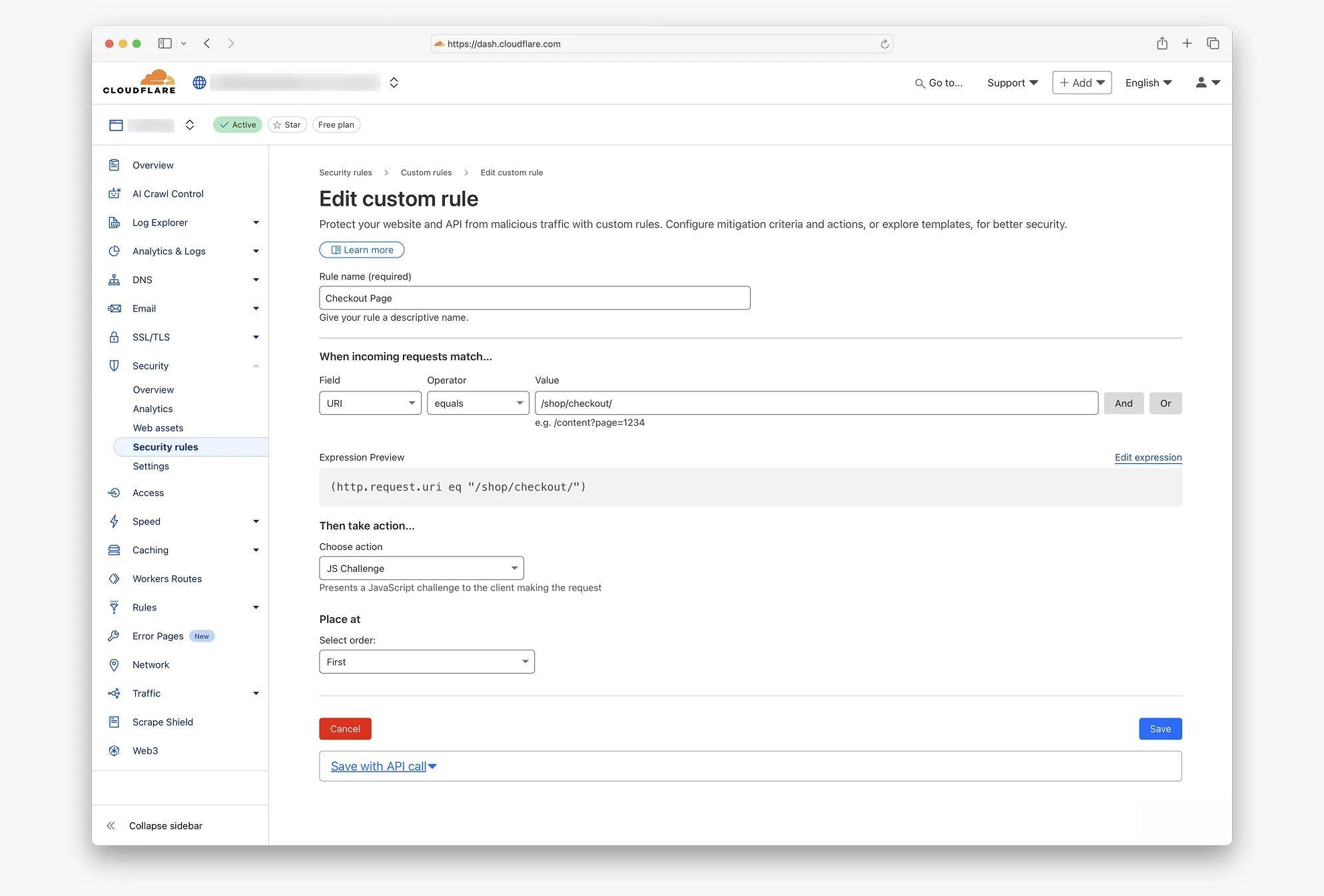
- In the Rule name field, enter: Checkout Page Geographic Challenge
- This descriptive name helps with future rule management
Step 3: Define Geographic Condition
- Under When incoming requests match…
- Configure the first condition:
- Field: Select Country from dropdown
- Operator: Choose does not equal
- Value: Select your primary market (e.g., Australia)
- Click And to add the second condition
Step 4: Target Checkout Pages
- For the second condition:
- Field: Select URI from the dropdown
- Operator: Choose equals
- Value: Enter /checkout/
Step 5: Verify Rule Logic
Confirm the Expression Preview displays:
(ip.src.country ne "AU" and http.request.uri eq "/checkout/")This expression triggers the rule for non-Australian visitors accessing checkout pages.
Step 6: Configure Security Response
- Under Then take action…
- Choose action: Select JS Challenge from dropdown
- This option presents an automated browser verification
Learn more about Cloudflare’s JavaScript Challenge functionality.
Step 7: Activate Protection
- Click Deploy to activate the rule
- The rule becomes effective immediately
- Monitor the Security Events tab for activity
While we’ve focused on blocking spam orders at checkout, the same type of Cloudflare rule can also help if you’ve been suffering from spam account creation in WooCommerce. By applying similar geographic or bot-filtering rules to the /my-account/ or /wp-login.php pages, you can dramatically cut down on fake registrations alongside order spam.
Alternative Configuration Options
Universal Checkout Protection
For maximum security, you can apply JavaScript challenges to all checkout attempts regardless of location:
- Follow steps 1-2 above
- Create a single condition:
- Field: URI
- Operator: equals
- Value: /checkout/
- Continue with security action configuration
This approach challenges every checkout attempt while maintaining a smooth user experience.
Multi-Page Protection
Consider protecting additional WooCommerce pages that bots commonly target:
- /cart/ – Shopping cart page
- /my-account/ – Customer account area
- /wp-admin/ – Administrative backend
Alternative Solutions for Non-Cloudflare Users
If switching to Cloudflare isn’t feasible, consider these alternatives:
.htaccess Geographic Blocking
For Apache servers, you can implement basic geographic filtering using .htaccess rules. However, this requires regular updates to IP ranges and may not be as effective as cloud-based solutions.
Plugin-Based Solutions
While not server-level, some WordPress plugins offer geographic restrictions:
- iThemes Security – Includes geographic blocking features
- All In One WP Security – Offers basic country blocking
- Jetpack – Provides brute force protection with geographic awareness
Hosting-Level Firewalls
Some hosting providers offer WAF services:
- SiteGround – Includes geographic blocking in higher-tier plans
- WP Engine – Offers advanced security features
- Kinsta – Provides DDoS protection and geographic filtering
Implementation Considerations
Testing Your Configuration
Before full deployment:
- Test the rule using a VPN set to a blocked country
- Verify legitimate customers can complete purchases
- Monitor conversion rates for 24-48 hours after activation
- Use tools like GTmetrix to check performance impact
Monitoring and Maintenance
Regular monitoring ensures optimal performance:
- Review Security Events in the Cloudflare dashboard weekly
- Check for any unusual drops in international traffic (if you serve global customers)
- Monitor Google Search Console for crawling issues
- Track your WooCommerce order data for spam reduction effectiveness
Browser Compatibility
Modern JavaScript challenges work with virtually all current browsers. According to StatCounter’s browser statistics, compatibility issues affect less than 0.1% of web traffic, primarily from extremely outdated browsers.
Expected Outcomes and Performance Metrics
Based on implementations across multiple Australian WooCommerce sites, typical results include:
Spam Reduction
Most sites experience a substantial decrease in automated order attempts within 24-48 hours of rule activation.
Performance Benefits
- Reduced server load from eliminating bot traffic
- Cleaner order management data
- More accurate conversion rate calculations
- Decreased payment gateway fees from failed transactions
Time Savings
Store owners report significant reductions in time spent managing fake orders and investigating suspicious transactions.
Complementary Security Measures
Server-level protection works best as part of a comprehensive security strategy:
WordPress Security
- Keep WordPress and WooCommerce updated
- Use strong passwords and two-factor authentication
- Regular security scans with tools like Wordfence
Backup and Recovery
- Implement automated backups with UpdraftPlus
- Test restoration procedures periodically
- Store backups in multiple locations
Payment Security
- Enable fraud detection in your payment gateway
- Monitor high-risk transactions manually
- Consider additional verification for large orders
Making the Right Choice for Your Store
Server-level spam protection offers significant advantages for WooCommerce stores experiencing bot attacks. The solution works particularly well for:
- Domestic-only retailers with clear geographic boundaries
- Stores struggling with high volumes of spam orders
- Businesses seeking to reduce administrative overhead
- Sites where customer experience is paramount
Limitations to Consider
This approach may not suit every situation:
- International retailers need more nuanced geographic rules
- Very small stores might not justify the setup complexity
- Some hosting arrangements restrict DNS management options
- Stores requiring maximum accessibility might prefer alternative approaches
Implementation Timeline
Most businesses can implement basic geographic filtering within 30 minutes. Allow additional time for testing and optimisation based on your specific traffic patterns.
Long-Term Security Strategy
Server-level protection represents an evolving approach to e-commerce security. As automated attacks become more sophisticated, infrastructure-level defenses provide more robust protection than application-layer solutions alone.
Consider this implementation as the foundation of your security strategy rather than a complete solution. Combine it with regular security audits, software updates, and monitoring for optimal protection.
For stores experiencing persistent spam order problems, server-level filtering typically provides immediate relief while requiring minimal ongoing maintenance. The investment in setup time pays dividends through reduced administrative burden and cleaner business data.
What to Do If You’re Already Overwhelmed: Cleaning Up Massive Spam Attacks
If you’re reading this article because you’re already dealing with hundreds or thousands of spam orders cluttering your WooCommerce dashboard, you know how overwhelming the cleanup process can be. Deleting orders one by one through the WordPress admin takes considerable time, and attempting to delete large batches can cause your WooCommerce site to freeze or become unresponsive.
The most efficient solution is to use SQL scripts that can remove all failed orders at once, completely clearing them from your database, including any associated trash entries. However, this approach requires careful handling and technical expertise.
We strongly recommend working with a WordPress developer for this task. They should create a staging version of your site first to test the SQL commands safely before running them on your live database. This prevents any accidental data loss and ensures the cleanup process works correctly.
Understanding WooCommerce Order Storage
WooCommerce stores orders and their related data across several database tables:
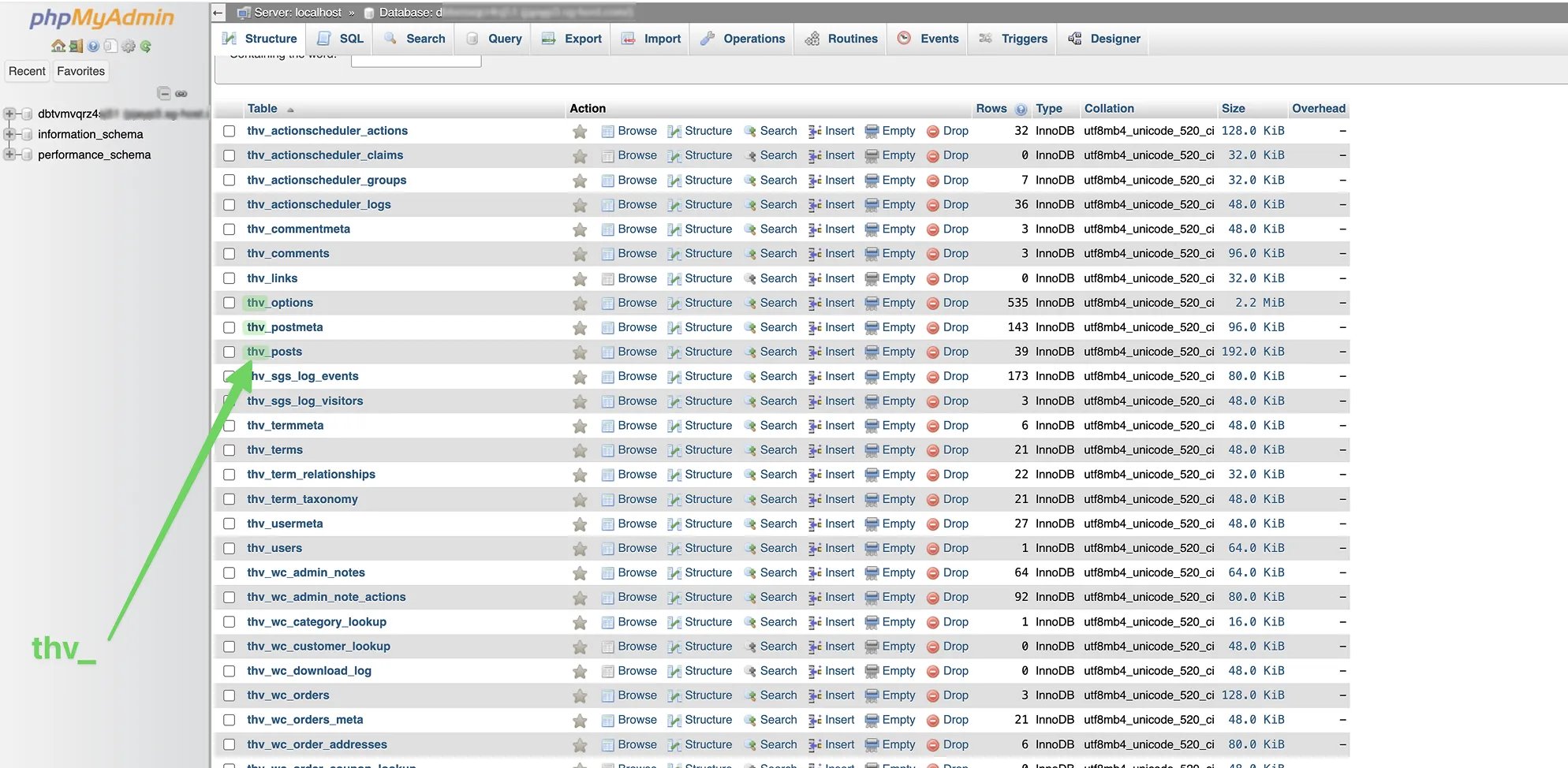
- wp_posts – Each order is stored as a post with post_type = ‘shop_order’. Failed orders have post_status = ‘wc-failed’.
- wp_postmeta – Stores metadata for each order, including payment details, customer notes, and custom fields.
- wp_woocommerce_order_items – Contains individual items within each order.
- wp_woocommerce_order_itemmeta – Stores additional data for each item, like product variations, quantities, and custom metadata.
To safely delete failed orders, you must remove all data from these tables in the correct order.
Step-by-Step SQL Solution
Before running any SQL commands, back up your database. Deleting orders is permanent and cannot be undone.
Single-Query Method for Safe Deletion:
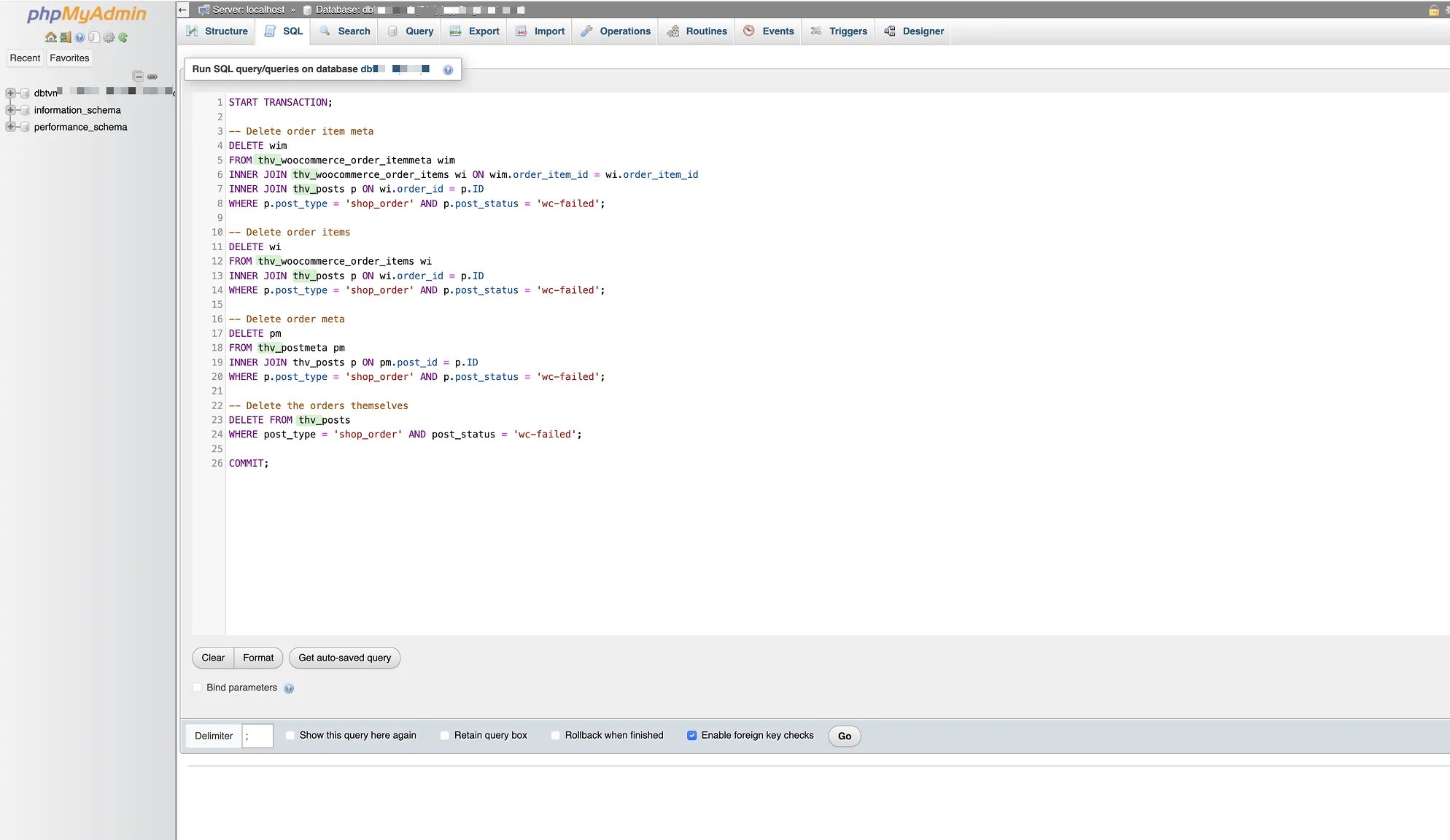
START TRANSACTION;

-- Delete order item meta
DELETE wim
FROM wp_woocommerce_order_itemmeta wim
INNER JOIN wp_woocommerce_order_items wi ON wim.order_item_id = wi.order_item_id
INNER JOIN wp_posts p ON wi.order_id = p.ID
WHERE p.post_type = 'shop_order' AND p.post_status = 'wc-failed';

-- Delete order items
DELETE wi
FROM wp_woocommerce_order_items wi
INNER JOIN wp_posts p ON wi.order_id = p.ID
WHERE p.post_type = 'shop_order' AND p.post_status = 'wc-failed';

-- Delete order meta
DELETE pm
FROM wp_postmeta pm
INNER JOIN wp_posts p ON pm.post_id = p.ID
WHERE p.post_type = 'shop_order' AND p.post_status = 'wc-failed';

-- Delete the orders themselves
DELETE FROM wp_posts
WHERE post_type = 'shop_order' AND post_status = 'wc-failed';

COMMIT;
How It Works
- Delete Order Item Meta – First, all metadata related to individual order items is removed.
- Delete Order Items – Then, the items themselves are deleted.
- Delete Order Meta – Next, all order-level metadata is removed.
- Delete Orders – Finally, the failed orders are deleted from the wp_posts.
The START TRANSACTION and COMMIT ensure database integrity. If something fails during execution, the transaction prevents partial deletion.
Important Notes
- Always test this on a staging site first before running on your live database
- Create a complete backup of your database before performing any deletions
- Replace wp_ with your database prefix if it’s different
- This method only affects failed orders (wc-failed) and leaves all other orders intact
- Regular cleanup helps improve database performance, especially for stores with thousands of orders
Depending on where your site is hosted, you can access your site’s database through tools like phpMyAdmin, MySQL Workbench, or your hosting provider’s database interface. The SQL commands will quickly delete all failed orders and their related data, giving you a clean slate to work with.
This database cleanup approach is particularly valuable for stores that have accumulated thousands of spam orders before implementing proper protection measures. Once your database is clean and you’ve implemented the server-level protection described in this article, you can focus on preventing future attacks rather than constantly managing fake order data.
Remember, this cleanup should only be done after you’ve implemented proper prevention measures. Otherwise, you’ll find yourself back in the same situation within days or weeks of cleaning up your database.
For detailed configuration guidance specific to your hosting environment, consult the Cloudflare documentation or consider working with a web security specialist to customise rules for your unique requirements.
