
With Google holding 93.37% of Australia’s search market share and over 40% of product searches now showing Google Shopping results, connecting WooCommerce to Google Merchant Center has become essential for online retailers. This integration puts your products directly in front of millions of active shoppers, and takes less than 30 minutes to complete.
Key Takeaways
- Connecting WooCommerce to Google Merchant Center is crucial for Australian retailers to enhance product visibility.
- Google Merchant Center (GMC) allows businesses to upload product data for use in Google Shopping and other services.
- The integration takes under 30 minutes using the official Google for WooCommerce plugin.
- Post-integration, products can appear in Google Shopping listings and Merchants can access performance insights.
- Ensure your product data is accurate and follows Google’s guidelines to avoid disapprovals and maximise visibility.
What Is Google Merchant Center?
Google Merchant Center (commonly abbreviated as GMC) is a free platform where businesses upload their product data so it can be used across Google’s eCommerce services, primarily:
- Google Shopping
- YouTube Shopping
- Local product listings
- Google Ads
In practice, it acts as the bridge between your WooCommerce product database and Google’s product feed engine. Without it, Google has no structured data to read, index or display.
GMC also feeds product data to Google Images search results and free listings that appear on Google Shopping.
What Are the Outcomes of Connecting WooCommerce With GMC?
Once the integration is complete:
- Your products can appear in free Google Shopping listings
- You can run Shopping Ads directly from Google Ads (with visual product cards)
- Google will pull real-time product information from WooCommerce (price, stock, image, etc.)
- You get access to performance insights through Merchant Center dashboards
If you’re selling physical goods and trying to increase visibility, not connecting to GMC simply leaves growth on the table.
Why Connect WooCommerce to Google Merchant Center?
Consumer behaviour has fundamentally shifted. In a 2024 BigCommerce survey, 58% of Australian consumers started product discovery directly on Google Shopping rather than brand websites or marketplaces like eBay.
Google requires structured data feeds. The algorithm can only display products submitted in the correct structured format. Product titles, identifiers and image ratios must comply with strict formatting guidelines to trigger in Shopping results.
Without this integration, you’re essentially invisible in the space where most product discovery now happens.
“Google Listings & Ads” WordPress plugin is now “Google for WooCommerce” plugin.
How to Connect WooCommerce to Google Merchant Center
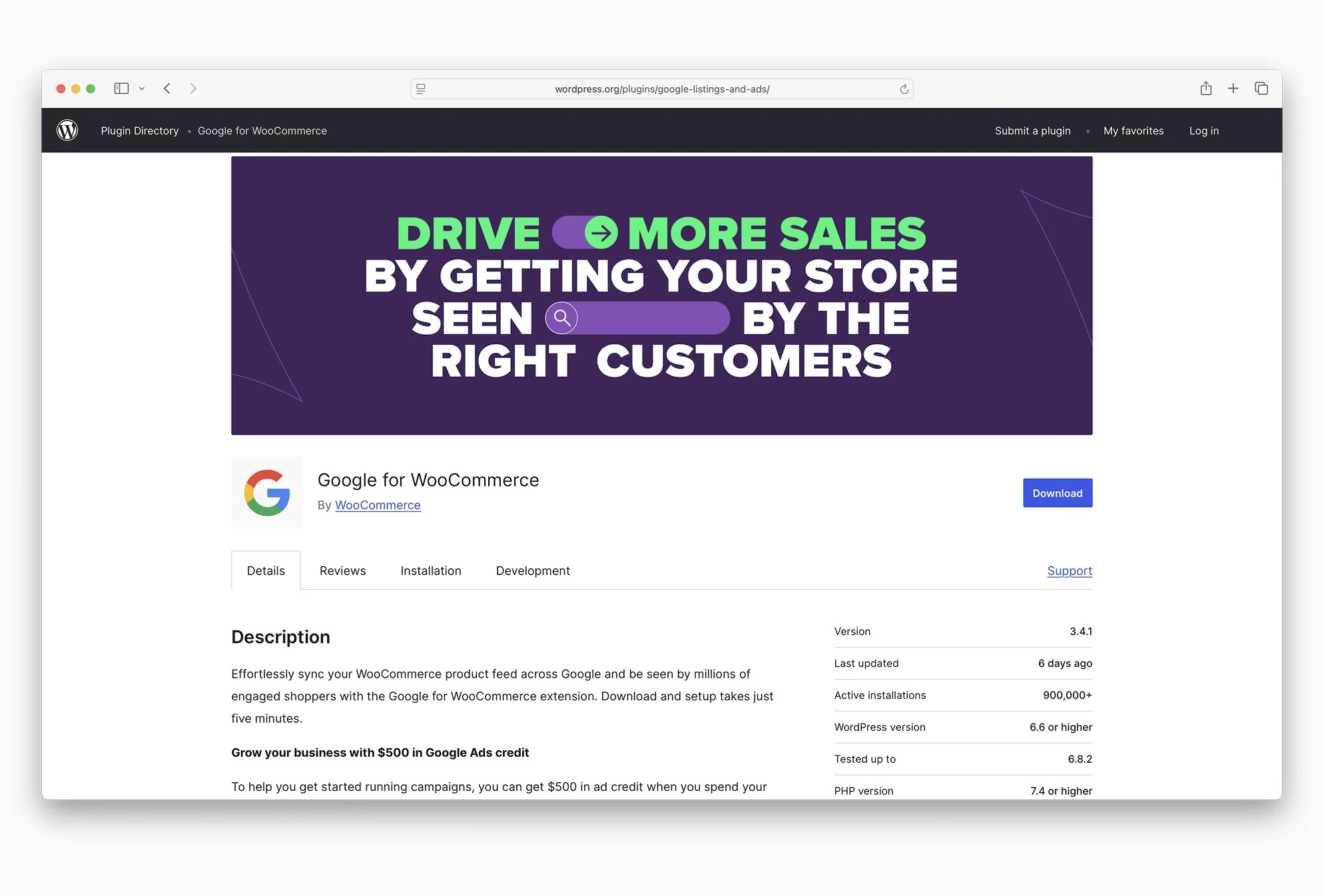
You don’t need to write any code. WooCommerce provides an official plugin that handles everything. The process takes less than 30 minutes.
Step 1: Install and Activate the Official Google for WooCommerce Plugin
- Go to Plugins → Add New
- Search for “Google for WooCommerce” (this is the official WooCommerce extension developed in partnership with Google)
- Click Install Now, then Activate
Tip: Check that your WordPress version is 5.9 or higher, as required by the plugin.
Step 2: Create (or Sign In to) Your Google Account
You must use the same Google account across three platforms:
- Google Merchant Center → merchants.google.com
- Google Ads → ads.google.com
- Google Analytics → analytics.google.com (optional but highly recommended)
Step 3: Set Up Google Merchant Center
- Go to merchants.google.com
- Select Create account
- Add a business name, website URL and select Country/Region of sale
- Under Business Information, complete:
- Customer service phone number
- Formatting preferences (AEST timezone, AUD currency)
Step 4: Verify and Claim Your Domain
Google will ask you to verify and claim your website domain. The simplest way for WooCommerce users is to:
- Return to the WooCommerce dashboard
- Go to Marketing → Google for WooCommerce → Setup
- From the Setup Wizard, click Verify Website
This adds the required verification meta tag to your site automatically.
Step 5: Sync WooCommerce Products
Now connect your Merchant Center account:
- In the same Setup Wizard, click Connect to Google Merchant Center
- Choose your Google account
- Grant permission
- Select “Sync all products” or choose individual categories
The plugin will generate a product feed in the background and push it into Merchant Center.
When Is the Best Time to Connect?
If you’re still building out product data, it’s better to wait until:
- Product titles are descriptive and unique
- Images are clean and high-resolution
- Stock levels and shipping settings are accurate
Google’s approval process is automated, but rejections are common if required fields are left blank. 📖 Review Google’s Shopping policies to avoid common issues.
Is WooCommerce Integration With Merchant Center Effective?
Yes, provided your product data is accurate and well structured.
A recent case study published by Google showed a 37% increase in click-through rate for SMB retailers in Adelaide who synced WooCommerce products to Google Shopping and enabled automated product updates.
However, stores with incomplete product data (generic product titles or missing identifiers) saw no noticeable improvement, and in some cases had products disapproved or limited in visibility.
Pre-Submission Checklist for Google Merchant Center (WooCommerce)
Product Data
✅ Product title is descriptive (includes brand and model/type)
✅ Description is unique and written in sentence format
✅ GTIN, UPC or MPN fields are completed
✅ Google product category is assigned
✅ Price currency is set to AUD
✅ Availability reflects current stock levels
Images
✅ Minimum 800×800px
✅ Clear background
✅ Product centred at 75–90% of frame
✅ No logos, text overlays or badges
Shipping / Tax
✅ Shipping rates defined in WooCommerce
Same rates mapped in Merchant Center
✅ Same rates mapped in Merchant Center
📍 Navigate to: Tools → Shipping & returns in GMC
Ready to Get Started?
Connecting WooCommerce to Google Merchant Center is one of the most impactful steps you can take to increase your product visibility online. With Google Shopping dominating product discovery in Australia, this integration puts your products where your customers are actively searching.
Follow the steps above, complete the checklist, and you’ll have your products appearing in Google Shopping results within days of approval.
Need help with your WooCommerce setup? Our team specialises in e-commerce optimisation for Australian businesses. Contact us today for a free consultation.
Enhanced Guide: Advanced Strategies & Deep Dive
Visual Overview: The Google Shopping Ecosystem
Deep Dive: The Google Shopping Ecosystem Explained
Google Shopping Ecosystem: How the Platforms Work Together
Understanding the flow between platforms provides a clearer mental model:
- GMC holds your product data (prices, images, descriptions, availability)
- Google Ads uses that data to create targeted shopping campaigns
- Google Analytics tracks performance across all touchpoints
- Automated updates keep everything synchronised in real-time
Benefits Beyond Standard Ads
While the main article mentions free listings, your product data reaches multiple destinations:
Additional Destinations:
- Local Inventory Ads – Drive foot traffic to physical stores
- Surfaces across Google – Rich snippets in organic search results
- Google My Business – Product displays in local business profiles
- YouTube Shopping – Product showcases in video content
Cross-Platform Synergy:
- Shopping data enhances organic search visibility
- Local listings support omnichannel selling strategies
- Video commerce integration expands reach
More Granular Step-by-Step Instructions
Enhanced Plugin Configuration Details
After installing the Google Listings & Ads plugin, you’ll encounter specific configuration screens:
Initial Configuration Options
Sync Settings:
- “Sync all products” – Recommended for most stores, automatically includes new products
- “Sync specific categories” – Better for testing or seasonal control
- “Manual product selection” – Time-intensive but offers precise control
Update Frequency:
- Real-time updates – Immediate synchronisation (recommended)
- Scheduled updates – Daily/hourly batches for stable inventory
- Manual updates – Complete control but requires maintenance
Advanced Verification and Claiming Methods
While the automated plugin method works for most users, alternative verification methods are available:
Method 1: HTML File Upload
- Download the verification file from GMC
- Upload to your website’s root directory via FTP
- Confirm accessibility at yoursite.com/googleXXXXXXX.html
Method 2: Meta Tag Manual Addition
<meta name="google-site-verification" content="XXXXXXXXX" />
Add this to your theme’s header.php within the <head> section.
Method 3: Google Analytics/Tag Manager
- Use existing Analytics tracking code
- Verify through GTM container if already implemented
🔧 Comprehensive Troubleshooting Guide
Common GMC Errors and Solutions
“Limited performance due to missing identifiers (GTIN, MPN, Brand)”
Problem: Products lack the required product identifiers
Solutions:
- 🔧 Install a GTIN management plugin.
- Use WooCommerce’s bulk edit feature to add missing GTINs
- Create a brand taxonomy for consistent brand naming
“Image link failures (404 errors)”
Problem: Google cannot access your product images
Solutions:
- Verify images are publicly accessible (not password-protected)
- Check SSL certificate validity
- Optimise image file sizes (under 64MB)
- Ensure CDN settings don’t block Google’s crawlers
“Pricing and availability mismatch”
Problem: Prices differ between your store and the GMC feed
Solutions:
- Enable real-time price synchronisation
- Verify currency settings match (AUD)
- Check tax inclusion settings
- Update out-of-stock product availability immediately
“Pending Initial Review” Troubleshooting
Why products get stuck:
- Policy violations (prohibited content)
- Incomplete product data
- Recent account creation (normal 3-7 day review period)
- Frequent feed resubmissions during review
Action steps:
- 📖 Review Google Shopping policies thoroughly
- Ensure all required fields are complete
- Avoid resubmitting feeds during initial review
- Check for disapproved products in the GMC dashboard
Fixing Data Issues at Scale
Bulk Product Data Solutions:
- Use WooCommerce’s native bulk editor for price/stock updates
- Install “Bulk Edit Products for WooCommerce” plugin for complex attribute changes
- Export/import CSV files for major data corrections
- Set up automated rules for consistent data formatting
Best Practices for Ongoing Optimisation
Feed Management Beyond Initial Setup
Scheduled Update Strategy
High-volume stores: Every 30 minutes
Standard stores: Every 4-6 hours
Low-change inventory: Daily updates
Update Triggers to Monitor:
- Price changes
- Stock level modifications
- New product additions
- Seasonal availability changes
Supplemental Feeds for Enhanced Data
Supplemental feeds add extra information without altering your main feed:
Use Cases:
- Custom labels – Segment products for different campaigns
- Sale prices – Promotional pricing with start/end dates
- Additional images – More product photos beyond the main image
- Enhanced descriptions – Extended product information
Product Data Optimisation (SEO for Shopping)
Title Optimisation Formula
[Brand] + [Product Type] + [Key Attribute 1] + [Key Attribute 2] + [Size/Color]
Examples:
✅ Good: “Moroccan Vintage Hand-Knotted Wool Area Rug Navy Blue 200x300cm”
✅ Good: “Apple iPhone 15 Pro 128GB Titanium Blue Unlocked Smartphone”
❌ Poor: “Rug”
❌ Poor: “Phone Case”
Description Best Practices
- First 160 characters appear in Shopping results
- Include relevant keywords naturally
- Mention key features and benefits
- Add size/fit information when relevant
- Use bullet points for readability in longer descriptions
Image Optimisation Standards
- Main image: Clean, professional product shot on white background
- Additional angles: Multiple product views showing details
- Lifestyle context: Product being used in real situations
- Size reference: Include scale indicators where helpful
Performance Monitoring Dashboard Usage
Key Metrics to Track Weekly
Visibility Metrics:
- Impressions – How often products appear in search
- Search impression share – Your market coverage percentage
- Benchmark CTR – How you compare to industry averages
Engagement Metrics:
- Click-through rate (CTR) – Listing appeal indicator
- Average cost-per-click (CPC) – For paid campaigns
- Shopping ad clicks – Paid traffic volume
Conversion Metrics:
- Conversion rate – Percentage of clicks that purchase
- Revenue per click – Average transaction value
- Return on ad spend (ROAS) – Profitability measure
Using GMC Performance Dashboard Effectively
- Navigate to the Performance tab in GMC
- Filter by date ranges to identify trends
- Segment data by product groups for detailed insights
- Identify top-performing products for increased investment
- Find improvement opportunities in low-CTR products
Advanced Section for Power Users
Campaign Types and Bidding Strategies
Standard Shopping Campaigns
Best for:
- Manual control over product group bids
- Specific product promotion strategies
- Detailed budget allocation by category
Setup Strategy:
- Create product groups based on profit margins
- Set aggressive bids for high-value items
- Use negative keywords for precision targeting
- Monitor search term reports for optimisation
Performance Max Campaigns
Best for:
- Automated optimisation across all Google networks
- Maximum reach with minimal management
- AI-driven bidding based on conversion data
Requirements:
- Conversion tracking is properly configured
- High-quality product data and images
- Sufficient budget for 2-4 week learning phase
- Clear conversion goals defined
Custom Labels for Advanced Campaign Segmentation
Custom labels allow sophisticated product organisation:
Strategic Label Categories
Custom Label 0: Profit Margins
- High-margin (>50%)
- Medium-margin (20-50%)
- Low-margin (<20%)
- Loss-leader (<5%)
Custom Label 1: Seasonality
- Year-round
- Spring-seasonal
- Summer-seasonal
- Holiday-specific
- Clearance-items
Custom Label 2: Inventory Velocity
- Fast-moving (high turnover)
- Standard (regular sales)
- Slow-moving (promotional needed)
- Discontinued (clear inventory)
Custom Label 3: Competition Level
- High-competition (requires competitive pricing)
- Medium-competition (standard approach)
- Low-competition (premium pricing possible)
- Unique product (brand differentiator)
Negative Keywords Strategy
Negative keywords prevent your ads from showing for irrelevant searches, improving both cost-efficiency and conversion rates.
Campaign-Level Negatives
- “Free” – Avoid users seeking free products/services
- “Cheap” – Protect premium brand positioning
- “Used” – For retailers selling new products only
- “Tutorial” – Avoid how-to/instructional searches
- “DIY” – Prevent do-it-yourself project searches
Product Group Specific Negatives
- Competitor brand names – Prevent comparative shopping
- Incompatible sizes – Size-specific product exclusions
- Wrong demographic – Gender/age inappropriate searches
- Seasonal mismatches – Off-season search terms
Advanced Analytics Integration
Enhanced E-commerce Setup
- Configure Google Analytics 4 with e-commerce events
- Enable enhanced e-commerce tracking for detailed insights
- Set up custom conversion goals beyond basic purchases
- Implement cross-domain tracking if using multiple domains
Custom Conversion Goals
Micro-conversions:
- Add to cart events
- Wishlist additions
- Product page engagement
- Newsletter signups
Macro-conversions:
- Purchase completions
- Subscription sign-ups
- High-value customer acquisition
Value-based Bidding:
- Optimise for profit margins, not just conversion volume
- Set bid adjustments based on customer lifetime value
- Prioritise high-margin product promotion
Australian E-commerce Performance Benchmarks
Industry Average Performance (2024)
| Industry | Average CTR | Average CPC (AUD | Conversion Rate | ROAS |
|---|---|---|---|---|
| Fashion & Apparel | 1.2% | $0.85 | 2.8% | 4.2:1 |
| Electronics | 0.9% | $1.20 | 2.1% | 3.8:1 |
| Home & Garden | 1.4% | $0.95 | 3.2% | 5.1:1 |
| Sports & Recreation | 1.1% | $0.75 | 2.5% | 4.5:1 |
| Health & Beauty | 1.3% | $1.10 | 3.1% | 4.8:1 |
Setting Realistic Timeline Expectations
Month 1-2: Foundation Phase
- Focus on data quality and GMC approval
- Expect an initial learning curve and optimisation needs
- Target: Clean product data and approved listings
Month 3-4: Optimisation Phase
- Improve CTR through title and image optimisation
- Implement negative keyword strategies
- Target: Above-average CTR for your industry
Month 5-6: Scaling Phase
- Scale successful products and campaigns
- Implement advanced segmentation strategies
- Target: Profitable ROAS and sustainable growth
Month 6+: Advanced Management
- Automated bidding and Performance Max campaigns
- Sophisticated audience targeting
- Target: Market leadership in your product categories
Advanced Product Data Requirements
Enhanced Product Attributes
Beyond basic requirements, advanced optimisation includes:
Detailed Product Specifications
- Material composition – Fabric types, metal grades, etc.
- Dimensions – Exact measurements for fit/compatibility
- Weight specifications – Important for shipping calculations
- Care instructions – Maintenance and usage guidelines
- Warranty information – Protection and service details
Advanced Categorization
- Google product categories – Most specific category available
- Product type – Your own category taxonomy
- Custom product groups – For internal campaign organisation
- Condition – New, refurbished, used (where applicable)
Feed Quality Score Optimisation
Google assigns quality scores based on:
- Data completeness (all required fields filled)
- Data accuracy (matches website information exactly)
- Image quality (high resolution, clear backgrounds)
- Policy compliance (adheres to Shopping policies)
- Performance history (CTR and conversion rates)
Final Implementation Checklist
Pre-Launch Verification
- [ ] GMC account approved and active
- [ ] All products synced without errors
- [ ] Feed processing completed successfully
- [ ] Domain ownership verified and claimed
- [ ] Shipping/tax settings configured accurately
Post-Launch Monitoring (First 30 Days)
- [ ] Daily GMC dashboard review for issues
- [ ] Weekly performance metrics analysis
- [ ] Product disapproval immediate resolution
- [ ] Feed error monitoring and correction
- [ ] Competitor benchmarking and positioning
Ongoing Optimisation Tasks
- [ ] Monthly performance reviews with stakeholders
- [ ] Quarterly strategy adjustments based on data
- [ ] Seasonal campaign preparation 6-8 weeks in advance
- [ ] New product integration within 24 hours of launch
- [ ] Annual feed audit for data quality maintenance
This enhanced guide provides the comprehensive foundation needed to not just connect WooCommerce to Google Merchant Center, but to excel in the competitive Australian eCommerce landscape. Success comes from consistent implementation of these advanced strategies combined with regular monitoring and optimisation.
Need help with your WooCommerce setup? Our team specialises in eCommerce optimisation for Australian businesses. Contact us today for a free consultation.
